πŸŽ‰
Limited Time Offer
Spring Promotion
Up to $700 OFF registration packages
Guaranteed 30% OFF first 2 renewal years
0
Days
:
00
Hrs
:
00
Min
:
00
Sec
Digital Services Guide

Digital Quotation

Complete Guide to Reviewing and Paying Quotations

This guide covers Voplus's built-in digital quotation feature β€” part of our digital corporate secretarial platform. Learn how to review, comment on, and pay quotations directly in your browser. No account needed, no software required.

3 min read
Updated 2026-03-09
Digital Services

Digital Quotation Overview

No
Account Needed
4
Payment Methods
PDF
Download Format
Instant
Card Invoice
Voplus's digital quotation feature lets you review, comment on, and pay quotations through a secure, web-based process β€” built directly into our digital corporate secretarial platform. Whether you are reviewing a service quotation, requesting adjustments, or completing payment β€” everything happens in your browser. No account or software installation is required.

Key Terminology

QuotationA detailed breakdown of services, quantities, and pricing
PaymentSecure payment via Card, Alipay, PayNow, or Bank Transfer
CommentA message on the quotation to ask questions or request changes

1Reviewing & Paying a Quotation

You do not need an account to review or pay. Everything happens in your web browser on both desktop and mobile. All you need is the quotation email with a secure link.

Quotation Email

An email with a secure link sent when a quotation is created for you

Web Browser

Any modern browser on desktop or mobile β€” no software installation needed

No Account Required

Review and pay directly from the link in your email β€” no registration or login needed

2Review the Quotation

Take your time to go through the quotation β€” check the services, quantities, pricing, discounts, tax, and the final Grand Total at the bottom.
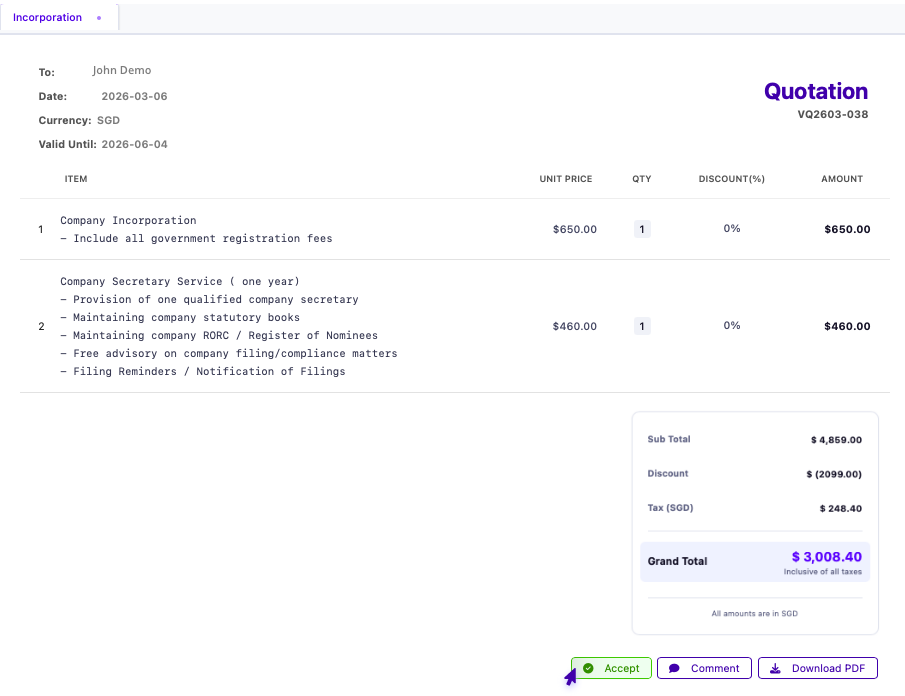
Review quotation details
Review the full pricing breakdown before accepting
If anything looks off, don't accept yet. Use the Comment button (Step 4) to raise the issue β€” the sender can revise and resend.

3Accept the Quotation

When you are ready to proceed, follow these steps:

  1. Click Accept at the bottom of the quotation page
  2. A dialog appears with the Terms & Conditions
  3. Read the terms and click Agree to confirm
  4. The quotation status updates to Accepted and Pay becomes available
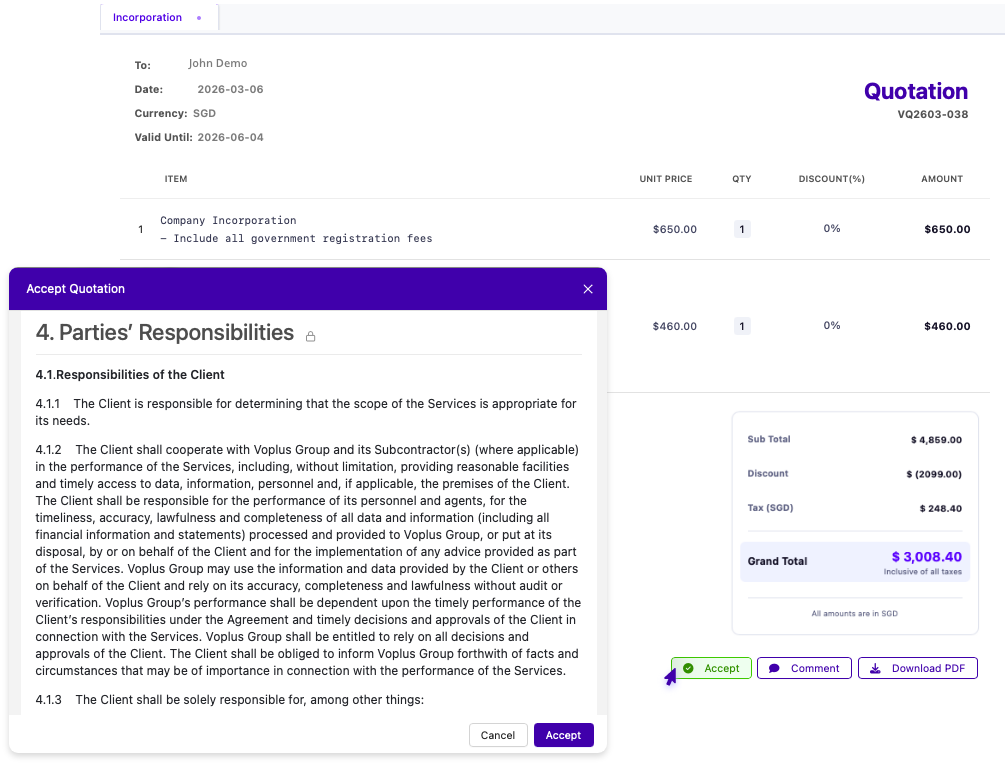
Accept quotation dialog
The Terms & Conditions dialog β€” read and agree to accept the quotation

4Ask Questions or Comment

At any point, you can click the Comment button to post questions or feedback about the quotation. The sender will be notified straight away.
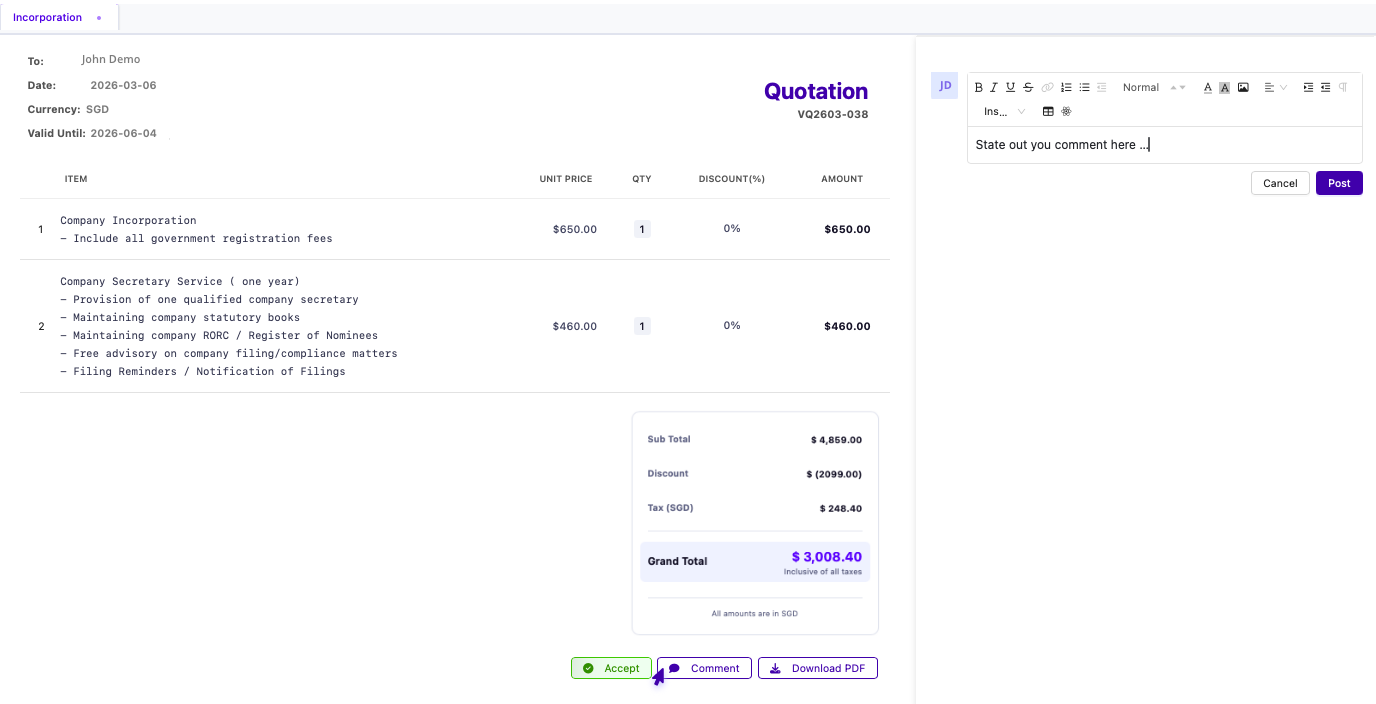
Post a comment on the quotation
Post a comment β€” the sender is notified immediately
The comment editor supports formatting, links, and images.

5Quotation Under Review

If the quotation is being revised based on your feedback, you will see an "under review" screen. The pricing details are hidden until the updated version is ready.

Available actions during review:
  • Click Comment to continue the conversation
  • Click Download PDF to save a copy of the current quotation
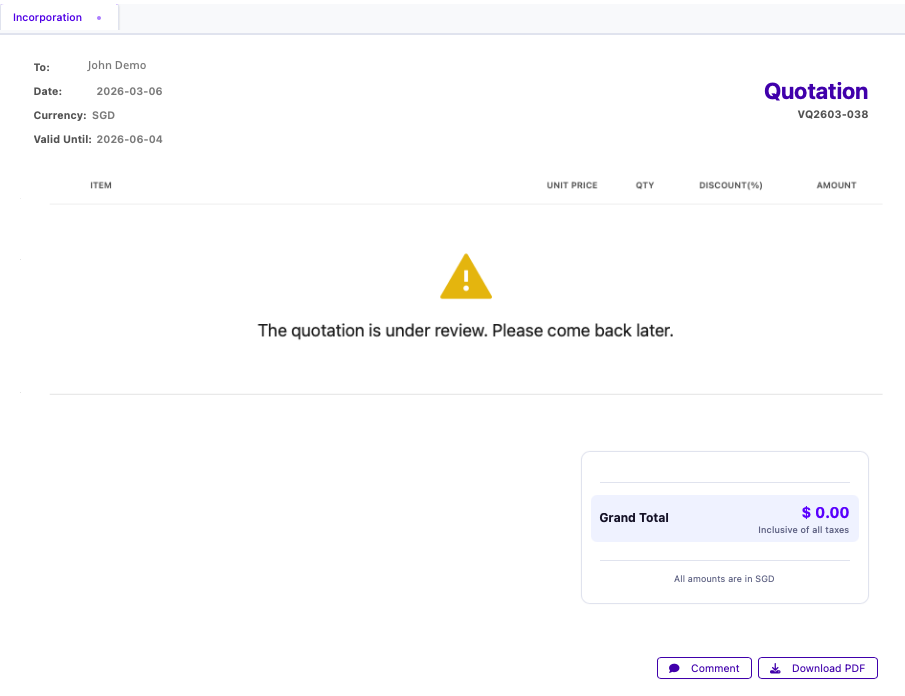
Quotation under review
The quotation is being revised β€” commenting and downloading are still available
Once the updated quotation is ready, you'll receive a new email with a link to the revised version.

6Download the PDF

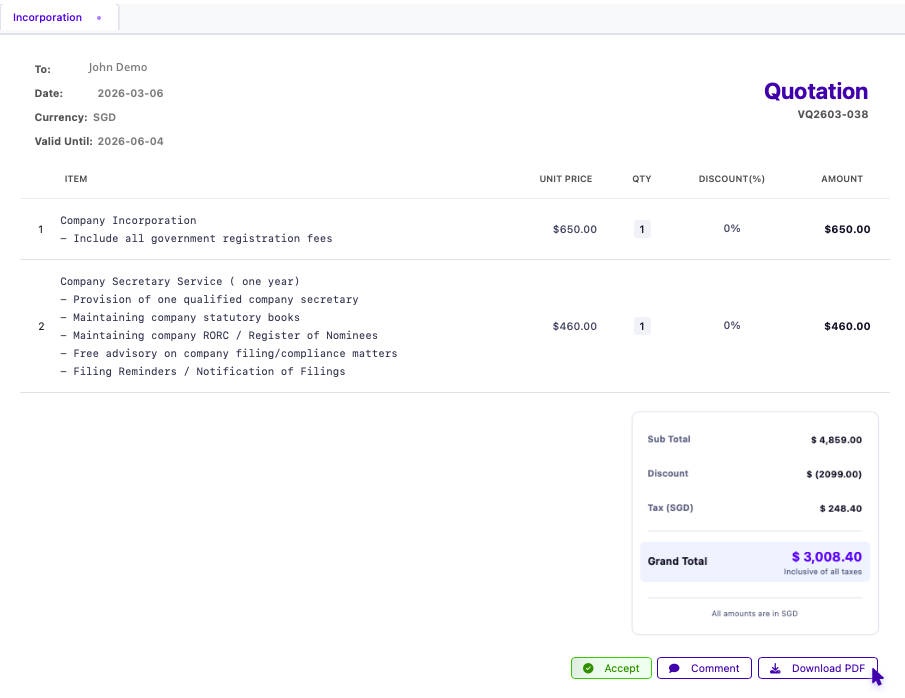
Click Download PDF at any time to save a copy of the quotation with the full pricing breakdown.
Download quotation PDF
Download the quotation as a PDF at any time
The link stays active, so you can come back anytime to download the PDF again.

7Complete Payment

After accepting, click Pay to open the payment modal and choose a payment method:

Card

Payment is completed instantly via secure Stripe checkout. Your invoice is available for immediate download.

Alipay or PayNow

A QR code is displayed for you to scan with your payment app. Your invoice is available once payment is confirmed.

Bank Transfer

Bank account details are shown. After transferring, upload the transaction receipt. Your invoice will be sent once payment is verified.
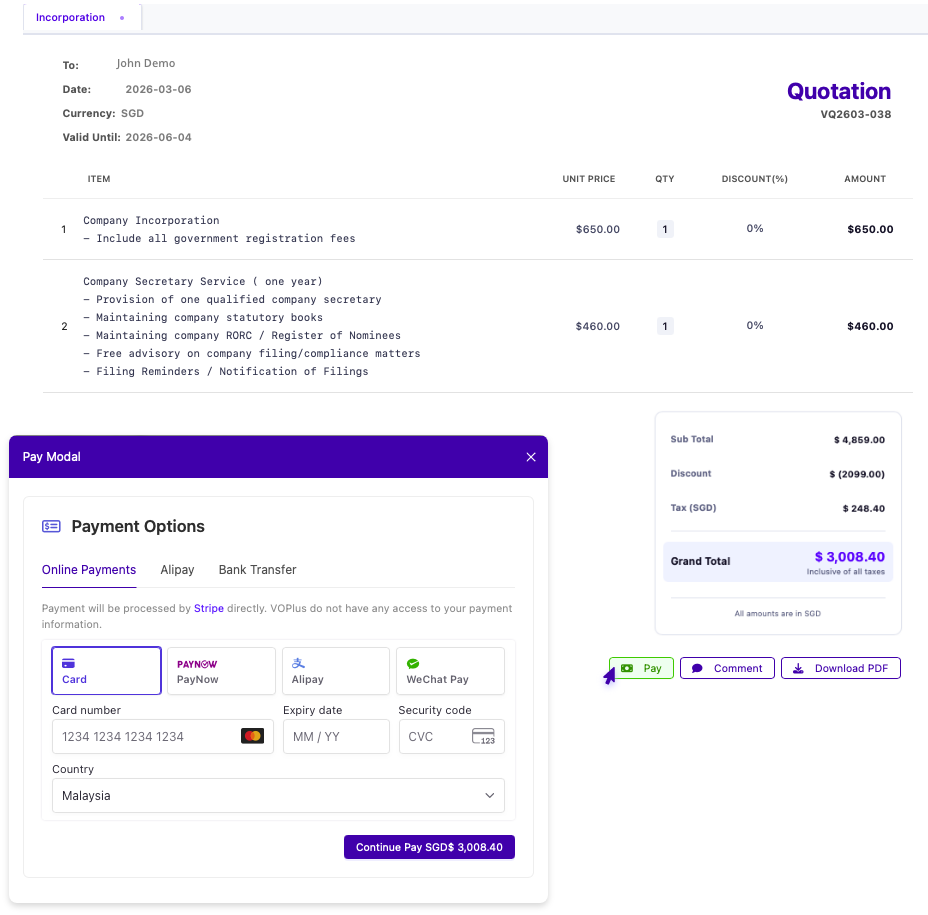
Payment methods
Choose a payment method β€” Card, Alipay, PayNow, or Bank Transfer
Invoice Availability
CardAvailable immediately
Alipay / PayNowAvailable once payment is confirmed
Bank TransferSent once payment is verified
Card payments are processed by Stripe β€” a valid Stripe account is required on the sender's side.

Frequently Asked Questions

Do I need an account to review and pay?
No. You can review and pay directly from the link in the email β€” no account or registration needed.
Can I review and pay on my phone?
Yes. The quotation page works in any modern mobile browser.
Can I request changes to the quotation?
Yes. Click Comment to post questions or request adjustments. The sender will be notified and can revise the quotation.
What payment methods are supported?
Card, Alipay, PayNow, and Bank Transfer. Card payments are processed securely through Stripe. Alipay and PayNow display a QR code for you to scan with your payment app.
When is the invoice available?
For Card, the invoice is available for immediate download. For Alipay and PayNow, it's available once payment is confirmed. For Bank Transfer, it's sent once payment is verified.
What if the link in the email doesn't work?
Contact the sender and ask them to resend the quotation notification.
Can I access the quotation later?
Yes. The link stays active and can be revisited anytime to review details, comment, or download the PDF.