Key Terminology
Common Form Examples
Here are some examples of forms you may receive from us as part of our corporate secretarial services:
Change of Particulars
Update personal details such as name, address, ID number, or nationality for directors and shareholders.
Director Interest Declaration
Declare directorships and shareholdings in other companies, as required under the Companies Act.
Estimated Chargeable Income (ECI)
Provide estimated revenue and chargeable income figures for IRAS tax filing purposes.
Company Incorporation
Provide incorporation details such as company name, business activities, directors, shareholders, and share capital.
KYC / Due Diligence
Submit identity verification documents and beneficial ownership information for compliance purposes.
Annual Compliance Forms
Confirm company details, officer appointments, and financial year information for annual filings.
Submitter & Reviewer Roles
In most cases, the form is sent directly to the Submitter — the person who fills in and submits the form. A Reviewer is optional. If your organisation requires someone to check the form before it is submitted, let us know and we can add a Reviewer to the workflow.
Submitter
- Opens the form, fills in fields, uploads files, and adds signatures
- Reviews all details before submitting
- The only person who can submit the form
ReviewerOptional
- Can fill in fields, upload files, and add signatures
- Cannot submit — clicks "Review Complete" to forward to the Submitter
- Inform us if your organisation needs a Reviewer added
1Completing a Form
You do not need an account to fill in the form. Everything happens in your web browser on both desktop and mobile. All you need is the form invitation email with a secure link.
Form Invitation
An email with a secure link sent when a form is assigned to you
Web Browser
Any modern browser on desktop or mobile — no software installation needed
No Account Required
Fill in and submit directly from the link in your email — no registration or login needed
1Open the Form Link
Check your email for a message with a link or button to open the form. Click it and the form will load directly in your browser — no login or download required.
Digital Form Request
A form has been sent to you for completion. Please click the button below to open and fill in the form.
This link will open the form in your browser. No account required.
Example form invitation — actual email content and branding may vary
2Read the Instructions
Before filling anything in, take a moment to scroll through the entire form. Read any instructions or guidance text at the top — these explain what information is required, what documents you may need to prepare, and any specific requirements from the sender.
Before You Start Filling In
- Read all instructions and guidance text provided at the top of the form
- Scroll through the full form to understand what is being asked
- Prepare any supporting documents you may need to upload (e.g. ID copies, business profiles, resolutions)
- If a Reviewer has been assigned, understand your role — are you the Reviewer or the Submitter?
Auto-Save
Your answers are saved every few seconds. You can close the page and return later — everything you entered will still be there.
No Time Limit
Work at your own pace — there is no deadline enforced by the form itself.
Device Responsive
The form works on desktop, tablet, and phone — the layout adjusts automatically.
Secure Connection
All data is transmitted over an encrypted connection (HTTPS).
3Fill In the Form
Work through each section of the form. Most fields are self-explanatory — follow the labels and any placeholder hints. Here are the common field types you may encounter:
| Field Type | Example |
|---|---|
Text Field | Full Name John Doe |
Dropdown | Nationality Singaporean |
Date Picker | Date of Birth 15 Jan 1990 |
File Upload | Upload ID Copy Drag & drop or click |
Star Rating | Rate your experience |
Signature | Your Signature InsertClear |
Repeating Items
Some forms require multiple entries — for example, a list of company directors or shareholders. Click the + Add Item button to add a new row. To remove an entry, click the trash icon next to it. You can add as many rows as needed.
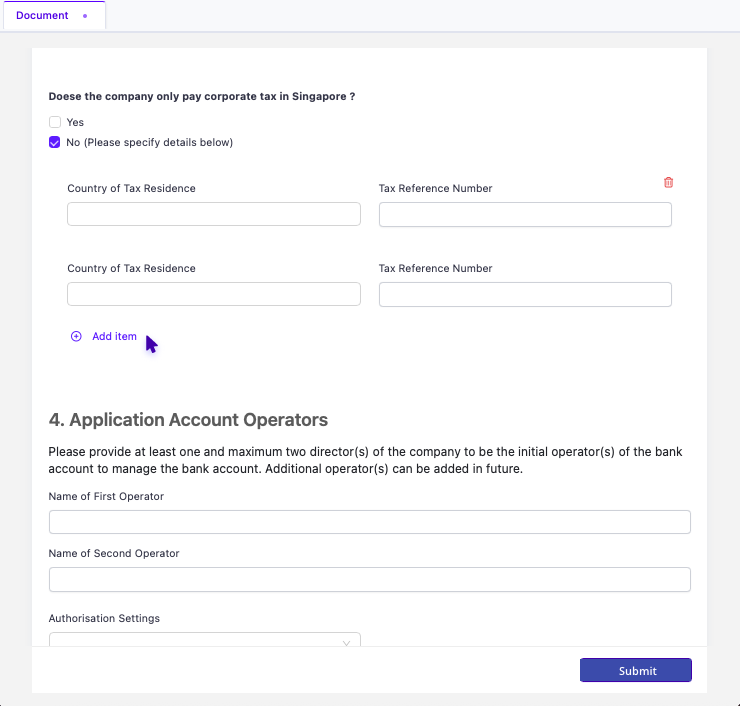
Conditional Sections
Some sections of the form are hidden by default and will only appear when you select a certain option. For example, if you answer "Yes" to a question, additional fields may appear for you to fill in. If you change your answer back, those fields will be hidden again.
Additional fields appear based on your answers
4Messages from Our Team
While you are working on the form, you may receive messages from our internal staff via email. These could be clarifications on a specific field, requests for additional documents, or guidance to help you complete the form correctly. All messages are delivered to you by email with a link to view them on the form.
Clarifications
Our team may message you via email if any field needs further explanation or if they notice something that requires your attention.
Document Requests
You may receive an email asking you to upload additional supporting documents. The message will specify what is needed.
5Review and Submit
This is the most important step. Before completing your review or submitting the form, take the time to go through every section carefully. Once submitted, the form is locked.
Before You Submit — Double Check
- Have you filled in all required fields? Look for any highlighted or mandatory sections.
- Are all uploaded documents correct? Verify file names and ensure you attached the right versions.
- Is your signature in place? Check that it appears clearly in the signature field.
- Have you read any messages from our team and addressed their requests?
- Are the details accurate? Double-check names, dates, ID numbers, and amounts.
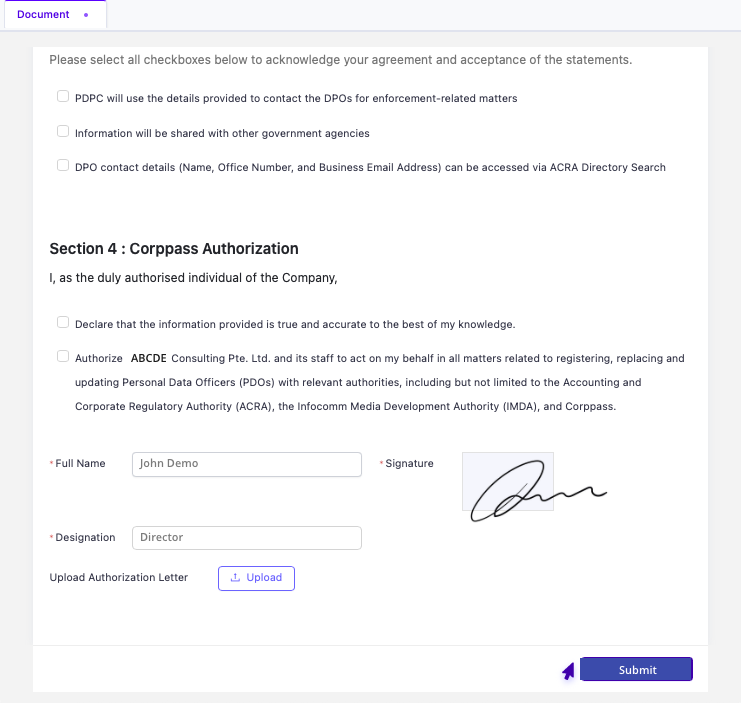
Submitter
- Review the form — update any details if needed.
- Ensure all required fields are completed, including your name, designation, and signature.
- Click the Submit button at the bottom of the form to send the completed form.
ReviewerOptional
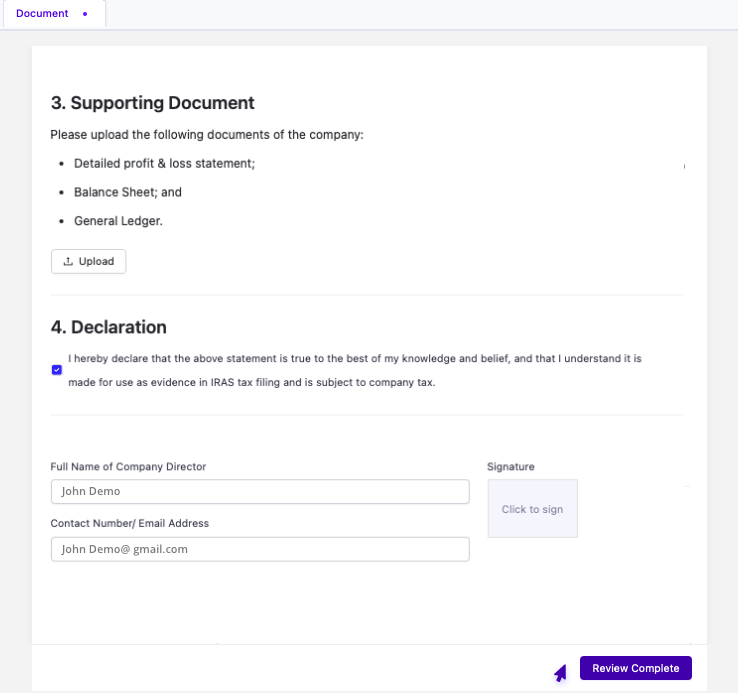
If your organisation has a Reviewer assigned, this section applies to you. Otherwise, skip this — you are the Submitter (see above).
- Go through the form and make sure all sections are filled in correctly.
- Click the Review Complete button at the bottom of the form.
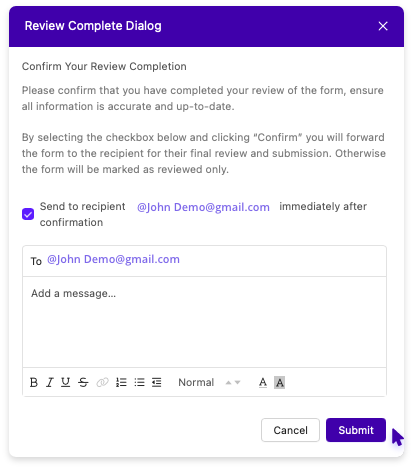
- A confirmation dialog will appear — check the box to send the form to the Submitter, add an optional message, then click Submit.
- The form is forwarded to the Submitter for final review and submission.
6After Submission
Once the form has been submitted, it is locked and no further edits can be made from your side. Our team will review the submission and proceed accordingly.
Submitted with a Mistake?
Don't worry — if you notice an error after submitting, contact us as soon as possible. We can reopen the form so you can make corrections and resubmit. The sooner you reach out, the easier it is to fix.